Note
This guide is for Paprika 4. Switch to the Paprika 3 guide.
HomeView Premium
Paprika for HomeView is a mini web app that allows you to access your Paprika account directly through HomeView's Safari browser.
Note
Paprika for HomeView is currently in public beta. It requires a Paprika account and is available to all account holders during the beta. After the beta ends, a Paprika 4 Premium subscription will be required for continued access.
Getting Started
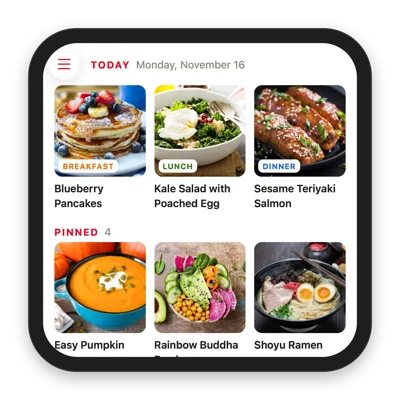
- Open Safari - On your HomeView, open Safari and go to paprikaapp.com/homeview.
- Sign in - Sign in with your Paprika account's email and password.
- Pin the site - After signing in, we recommend pinning the site in Safari so you can easily get back to it.
To sign out, open the menu and tap Sign Out at the bottom.
What You Can Do
- Home - See today's meals and your currently pinned recipes.
- Recipes - Browse your recipes by cookbook and category, or search by name.
- Groceries - Check your grocery lists, sorted by aisle.
- Pantry - See what's in each of your pantry locations.
- Meals - View your meal plan a day at a time.
Paprika for HomeView is currently read only and designed as a viewer for the data in your app. To add recipes or change your meal plan, grocery lists or pantry, use Paprika on your phone, tablet or computer, and your changes will show up on HomeView once they've synced. If there is sufficient interest, we will consider expanding the web interface further to support editing in the future.
Start Cooking
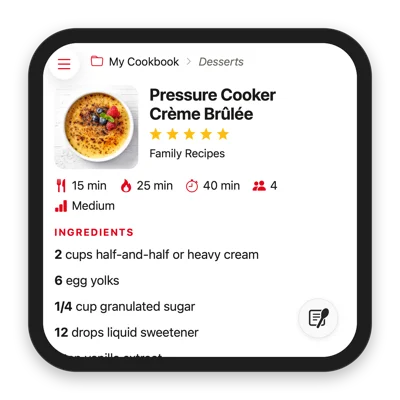
Open any recipe and tap Safari's button in the corner of the screen to switch to HomeView's cooking mode, which walks you through the recipe one step at a time.
You'll need to use Safari's cooking mode to keep the screen on while you cook.
Calendar Feeds
If you've subscribed to your meal plan with a Calendar Feed, your scheduled meals also appear in the Calendar app on HomeView. Tap the recipe link in a calendar entry to open that recipe in Paprika for HomeView.
Open on HomeView
Already have a recipe open on your iPhone? Send it to your HomeView instead of searching for it again. HomeView accepts handoffs from Safari on your iPhone, so Paprika opens the recipe in Safari for you to bring over.
- Open on HomeView - Open the recipe in Paprika, tap the button and choose
Open on HomeView. - Sign in - The recipe opens in Safari on your iPhone. If you're asked to, sign in with your Paprika account.
- Bring your phone up - Bring your iPhone up to your HomeView to open the recipe there.
Note
Open on HomeView is only shown when you're signed in to your Paprika account, since the recipe has to be synced to your account for HomeView to load it.
Make sure you sign in to the same Paprika account in HomeView that you're using inside the app. You can check the email address of the account under Paprika's Settings -> Manage Account.
Table of Contents
- Introduction
- What's New
- Pricing
- Overview
- Adding Recipes
- Scanning Recipes
- Browsing Recipes
- Editing Recipes
- Viewing Recipes
- Cook Mode
- Nutrition
- Categories
- Cookbooks
- Browser
- Groceries
- Pantry
- Meals
- Menus
- Sharing
- Settings
- Alexa
- HomeView
- Extensions
- Resources