Warning
This guide is for Paprika 4, which is currently in beta. Switch to the Paprika 3 guide.
Menus
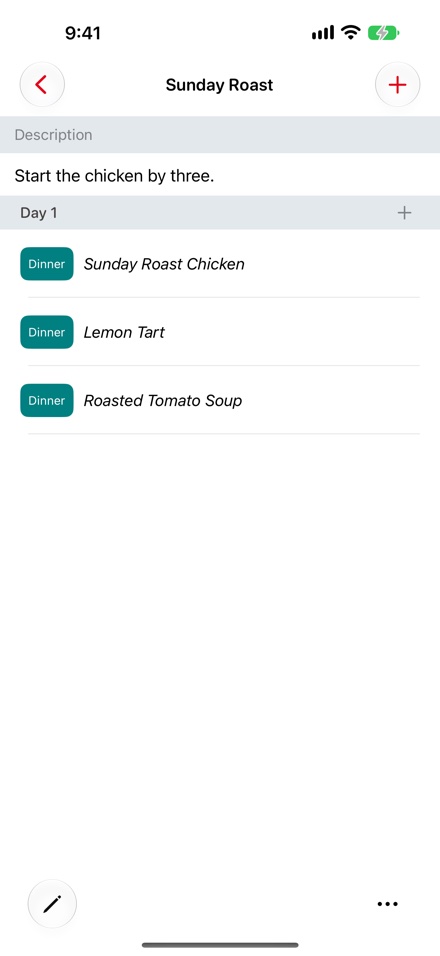
- Menu description Adding a Menu
- button Adding Menu Items
- Menu items, with their meal type Drag and Drop
- Edit button Menu Actions
- Actions menu Menu Actions
The menus section allows you to group your favorite recipes into reusable menus. Menus are flexible and can be used for different purposes.
Planning a Specific Meal
If you want to plan a specific meal, such as a big dinner, you can create a menu for that dinner. Give it a name and description, then add the recipes you want to make. You can also add extra notes to the menu to record preparation tasks or other information.
Making a Weekly Meal Plan
You can add multiple days to each menu, allowing you to create reusable weekly meal plans. To do this, edit the menu and set the Number of Days to 7. The menu will contain 7 headings, Day 1 through Day 7, one for each day. You can then add a recipe Breakfast, Lunch, Dinner, etc. for each day.
Later, you can add this menu to the meal planner. You will be asked to choose the start day, and the rest of the days will be filled in with all of the recipes you previously added to the menu.
Adding a Menu
To add a new menu, press the button over the menus list and enter in a name. You can also enter an optional description. If you would like the menu to include more than one day, you can increase the number of days here.
Adding Menu Items
Select the menu you would like to view. Press the button in the upper right toolbar to add a new item to the menu. Like the meal planner, you can choose between adding a recipe, a note, or a plain ingredient.
If this menu has been configured with multiple days, then after you have chosen the recipe or typed in the note, you will also be prompted to choose which day to add this menu item to.
Note
Menu items can be scaled, just like meals. To scale a recipe in the menu, tap , tap the info button next to the item, and enter the scale in the Scale field of the Edit Item popup. The scale is preserved when the menu is added to the meal planner or to the grocery list.
Note
On iPhone, you can rename a menu or change its number of days by choosing Edit from the menu's menu.
Drag and Drop
(iPad only)
On iPad, you can also add recipes to a menu by dragging and dropping them from the recipes panel.
Press the button to show the recipes panel. Browse to a recipe you like, then tap and hold on that recipe and drag it into the menu. If you have multiple days set up in your menu, you can drop the recipe over the desired day.
Adding a Menu to the Meal Planner
Once a menu is created, it can be added to the meal planner. This is done from the meal planner section. Press the button in the meal planner, then select Menu. Choose the menu you would like to add, then choose the start day.
When you add a menu to the meal planner, all of the recipes and notes in that menu are added to the meal planner. If the menu contains multiple days, each day in the meal planner will be filled in with the contents of the corresponding day in the menu.
Menu Actions
These actions are accessed by pressing the button in the toolbar.
| Action | Description |
|---|---|
| Add to Grocery List | Add the ingredients for the current menu to the grocery list. |
| Duplicate | Makes a copy of the current menu. Useful for creating a variation of an existing meal plan. |
| Emails the current menu. | |
| Prints the current menu. |
Table of Contents
- Introduction
- What's New
- Beta Testing
- Overview
- Adding Recipes
- Scanning Recipes
- Browsing Recipes
- Editing Recipes
- Viewing Recipes
- Nutrition
- Categories
- Cookbooks
- Browser
- Groceries
- Pantry
- Meals
- Menus
- Sharing
- Settings
- Extensions
- Resources