Warning
This guide is for Paprika 4, which is currently in beta. Switch to the Paprika 3 guide.
Browser
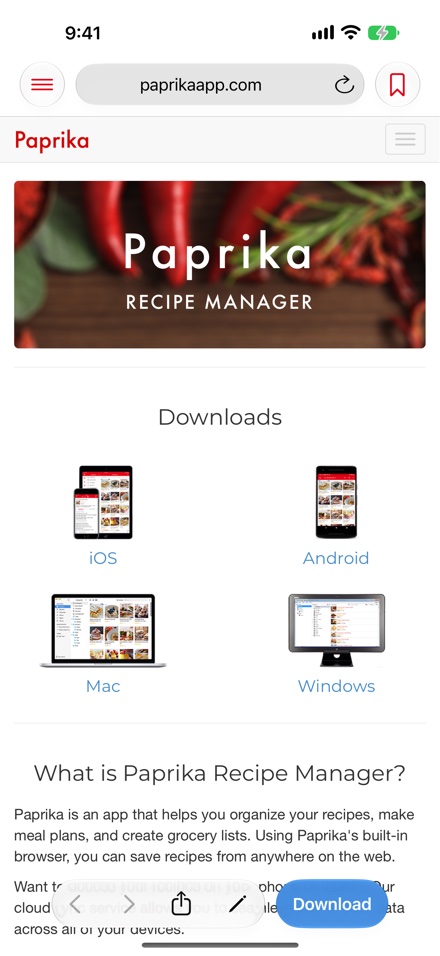
- Address bar Using the Browser
- Bookmarks button Using the Browser
- button Clipping Recipes Online
- Clipboard tools Manually Saving Recipes Using the Clipboard Tools
Paprika's built in web browser lets you easily search the internet for your favorite recipes and save recipes from many different websites.
Using the Browser
The browser toolbar contains back and forward buttons, a combined address bar and search bar, a share button, an edit recipe button that shows or hides the recipe pane, and the download button for clipping recipes.
Tap the address bar and type a URL to navigate to that page (ex: paprikaapp.com), or type in a search term to perform a recipe search. (ex: beet salad). If you have a link copied to the clipboard, you can also tap and hold the address bar and choose Paste and Go to load it in one step.
Note
If you copy a recipe link in another app, Paprika can offer to open it for you the next time you switch back to the app. You can turn this behavior on or off with the Detect Clipboard URLs setting in the Settings panel.
You can bookmark your favorite recipe sites, and your bookmarks sync with your other cloud data. Tap the bookmarks button at the top of the browser to display your bookmarks. From there you can load a bookmark in the browser, press to bookmark the current page, and edit, search and sort your bookmarks.
Note
The bookmark labeled Paprika Home takes you to Paprika's list of popular recipe sites.
Clipping Recipes Online
Paprika supports clipping recipes from hundreds of different recipe sites. In order to clip a recipe:
Use the web browser to browse to a recipe you would like to save.
Press the button in the browser toolbar.
Paprika will attempt to clip the recipe from the page and display it in the recipe pane. On iPhone, this pane slides up to fill the screen; on iPad, it slides in as a panel on the right side of the browser, so you can keep the original page in view while you review the recipe.
Review the recipe fields, then save the recipe.
If Paprika cannot figure out how to clip the recipe, it will display an error message. You can then use the manual clipboard tools (described below) to clip the recipe manually.
Note
You can show or hide the recipe pane at any time with the edit recipe button in the toolbar ( on iPhone, on iPad).
Note
If you clip a recipe that appears to already be in your collection (matching name and source), Paprika will warn you before saving a duplicate. Choose Save to save it anyway, or Cancel to go back.
Clipping Recipes from Social Media Premium
In addition to traditional recipe sites, Paprika can save recipes from social media posts, stories, and pages on sites such as TikTok, Instagram, Facebook, and YouTube. Paprika reads the recipe from the text of the post, including its caption or description, so posts on other sites may work too.
- Navigate to the post in Paprika's browser (or paste the post's link into the address bar).
- Press the button.
- Paprika will read the post's text and extract the recipe into structured ingredients and directions. Review the result, then save the recipe.
Shortcut You can also share a post to Paprika directly from the TikTok or Instagram app using the share sheet — see Saving Recipes from Other Apps.
Manually Saving Recipes Using the Clipboard Tools
If Paprika wasn't able to clip the recipe for you, or only partially clipped the recipe, you can use the clipboard tools to manually copy/paste the recipe information from any website.
To use the clipboard tools:
First, find the name of the recipe on the website. Tap and hold your finger over the name until the selection handles appear.
Drag the selection handles until the name is fully selected.
Choose
Namefrom the menu that appears above the selection. The selected text will be copied into theNamefield, and the recipe pane opens to show it.Repeat the same process with the
Ingredients,Directions, and any other fields you would like to capture. The selection menu offersName,Description,Ingredients,Directions,Notes, andNutrition.To save an image, tap and hold on it, then select from the menu that appears.
When you've copied all the fields you would like to save, press at the top of the recipe pane to transfer all of your copied information into a new recipe.
Tips
- You can use the button at the top of the recipe pane in order to clear your copied selections and try again.
- You can review and freely edit the text you have captured into each field before saving.
- If text already exists in a field when you capture a new selection, the current selection will be appended to the existing text. The
Namefield is the exception: a new selection replaces it.
Table of Contents
- Introduction
- What's New
- Beta Testing
- Overview
- Adding Recipes
- Scanning Recipes
- Browsing Recipes
- Editing Recipes
- Viewing Recipes
- Nutrition
- Categories
- Cookbooks
- Browser
- Groceries
- Pantry
- Meals
- Menus
- Sharing
- Settings
- Extensions
- Resources