Warning
This guide is for Paprika 4, which is currently in beta. Switch to the Paprika 3 guide.
Meals
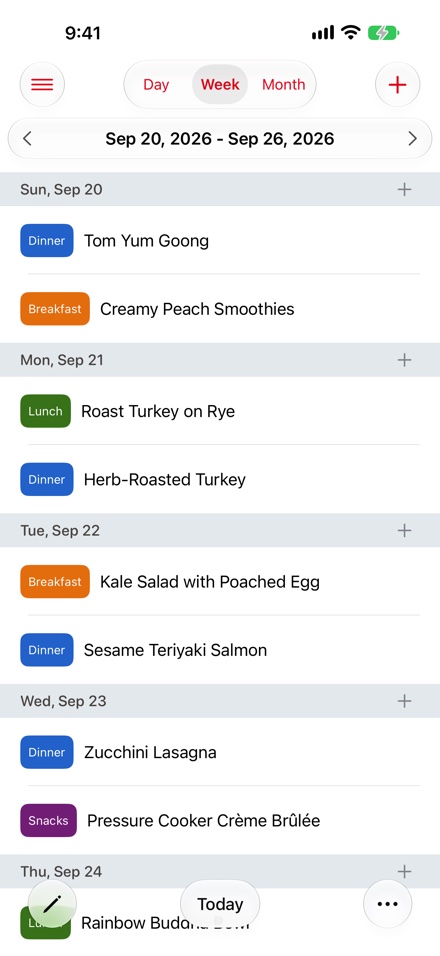
- Day, Week and Month Switching Views
- Week navigation Weekly View
- button From the Meal Planner
- Meal type Changing a Meal's Date or Type
- Actions menu Meal Planner Actions
Paprika comes with a built-in meal planner that can be used to create daily, weekly, and monthly meal plans.
Viewing the Meal Planner
Switching Views
Use the Day / Week / Month control at the top to switch between the daily, weekly, and monthly views. Use whichever view you prefer most. The current day is highlighted in the calendar, and you can press the button to jump back to the current date.
Daily View
The daily view shows the meals scheduled for the current day, sorted according to meal type. To jump to another day, tap the date at the top and pick a day from the calendar.
Weekly View
The weekly view displays a week's worth of meals at a time. To change the displayed week, press the and buttons to move forward or back a week.
Monthly View
The monthly view shows an entire month's worth of meals at once. Select a day to see all of the meals you have scheduled for that day. Use the and buttons to switch between months.
Adding a Meal
Adding meals can be done from the meal planner, or directly from the recipe screen.
From the Meal Planner
To add a meal from the planner, press the button. The Add Meal wizard will walk you through the steps of adding a meal:
- Choose between adding a
Recipe, aNote, anIngredient, or an entireMenu. - Depending on your selection:
- Choose Recipe - Choose a recipe.
- Add Note - Type in a note.
- Add Ingredient - Type in a plain ingredient (e.g.
leftover souporfruit salad) without needing a full recipe. - Choose Menu - Select a menu.
- Choose a date for your meal. Note The calendar will show your currently planned meals.
- Choose the meal type (
Breakfast,Lunch,Dinner,Snack,etc.). - Press .
Note
On iPad, the Add Meal wizard is presented as a centered form.
From the Recipe Screen
Open a recipe, and then press the button in the toolbar to add that recipe as a new meal.
Select the date for this meal, and then the meal type (Breakfast, Lunch, Dinner, Snack, etc.), and then press .
Drag and Drop
(iPad only)
On iPad, you can also add meals by dragging and dropping recipes onto the calendar. Press the button in the toolbar to slide in the recipes panel. Browse or search for a recipe you like, then tap and hold on that recipe and drag it onto the desired day.
If you have the Daily View selected, you'll be able to directly drag the meal into the desired meal type (Breakfast, Lunch, Dinner, Snack, etc.).
Editing Meals
Changing a Meal's Date or Type
Tap the button in the toolbar, then tap the info button next to a meal in order to edit it. Use the Edit Meal popup which appears to change the meal's Date or Type, the Scale of a recipe meal, or the text of a note or ingredient. Press when you are done.
Note
Tapping a recipe meal outside of editing opens the recipe, at the meal's scale.
Deleting Meals
Swipe left across a meal and tap to delete the meal. To delete several meals at once, tap , select the meals, and press the button in the toolbar.
Moving or Copying Meals
To move or copy meals to another date, tap and select the meals, then press and choose Copy or Move. Pick the new date on the Choose Date screen and press .
While editing, you can also drag a meal by its handle: in the weekly view, drag it onto another day of the week; in the daily view, drag it into a different meal type.
Scaling Meals
Each meal can have its own scale. When you add or edit a meal, choose a scale to adjust the recipe's ingredients for that meal — for example, doubling a recipe for guests. When you add scaled meals to the grocery list, the ingredient quantities will reflect the meal's scale.
When adding a recipe meal, enter the scale in the Scale field below the meal types (for example 2, 1/2, or 50%). To change it later, use the Scale field in the Edit Meal popup.
Meal Planner Actions
These actions are accessed by pressing the button in the toolbar.
The actions apply to the meals in the currently visible day, week, or month. While you are selecting meals, they apply to the selected meals instead, and the menu's title shows how many are selected.
| Action | Description |
|---|---|
| Add to Grocery List | Add the ingredients for the currently selected meals to the grocery list. |
| Export to Calendar | Exports the currently selected meals to the Calendar. By default the exported calendar will be named Paprika, but this can be changed under Settings. |
| Copy | While selecting, copies the selected meals to another date. |
| Move | While selecting, moves the selected meals to another date. |
| Email a meal plan for the currently selected meals. | |
| Print a meal plan from the currently selected meals. |
Calendar Feed Premium
A calendar feed shows your meal plan in Apple Calendar, Google Calendar, Outlook, or any other calendar app that can subscribe to a calendar by its link. Export to Calendar copies the meals once, but a feed keeps the calendar up to date as you plan, change, and delete meals in Paprika.
To set up a calendar feed:
- Open the Settings panel and tap
Calendar FeedunderMeal Planner. - Tap .
- Tap to add the feed to the Calendar app. To use another calendar app, tap and paste the link into that app's option for subscribing to a calendar by URL, such as
From URLin Google Calendar on the web.
The feed appears as a calendar named Paprika. Each meal appears at the time set for its meal type under Meal Types in Settings, or as an all-day event. The feed includes the meals from the past year and everything you've planned ahead. Your link is the same on all of your devices.
Note
Calendar apps check for changes on their own schedule, so a change can take a while to appear. Google Calendar can take up to a day to update.
Anyone with the link can see your meal plan. To stop a calendar from updating, return to Calendar Feed and tap . Calendars subscribed to the link stop updating, and you can create a new link at any time.
Note
Creating a calendar feed requires a Paprika account. If your subscription ends, the feed keeps the meals planned up to that date but stops adding new ones.
Table of Contents
- Introduction
- What's New
- Beta Testing
- Overview
- Adding Recipes
- Scanning Recipes
- Browsing Recipes
- Editing Recipes
- Viewing Recipes
- Nutrition
- Categories
- Cookbooks
- Browser
- Groceries
- Pantry
- Meals
- Menus
- Sharing
- Settings
- Extensions
- Resources