Warning

This guide is for Paprika 4, which is currently in beta. Switch to the Paprika 3 guide.

Saving Recipes from Other Apps

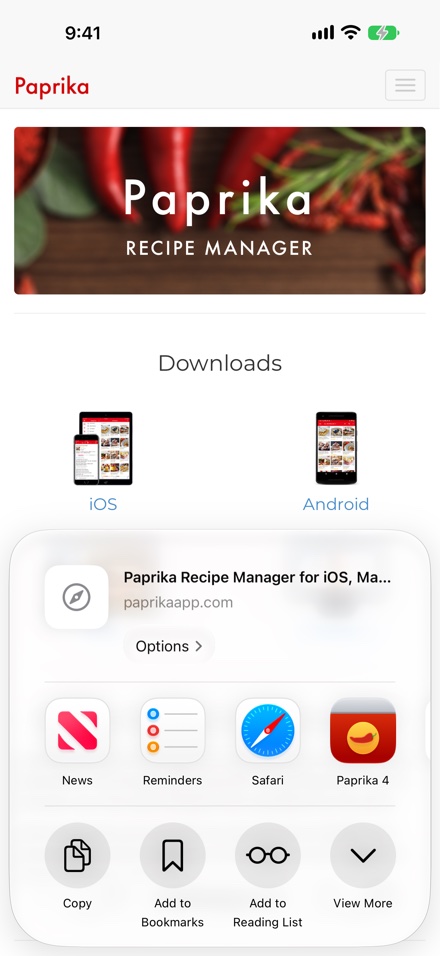
Safari's share sheet on iPhone over paprikaapp.com, with Paprika 4 in the row of apps beside News, Reminders and Safari.
  1. Paprika in the share sheet Saving Recipes from Other Apps
Sharing a page from Safari to Paprika.

Paprika's share extension allows you to save recipes directly from Safari and other apps, without opening Paprika first. Browse to a recipe you would like to save, then press the button.

In the share sheet, look for Paprika Recipe Manager. If you do not see it, scroll to the end of the app icons, press More, and enable Paprika in the list.

Tap the Paprika icon, and Paprika will find the recipe on the page and open the recipe form so you can review and save it into your collection.

Note

The share extension also works with social media apps — share a post from an app such as TikTok or Instagram to Paprika and it will extract the recipe from the post's text. See Clipping Recipes from Social Media.

Note

You must be logged into a Paprika account to use the share extension.


Widgets
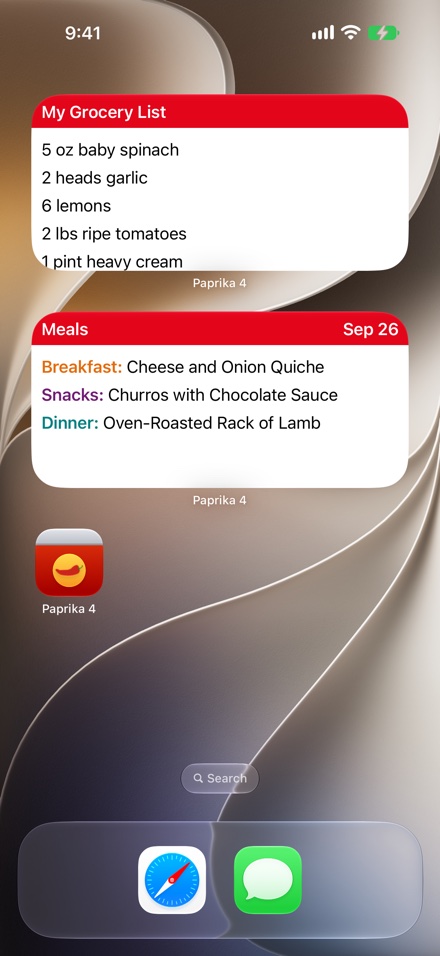
The iPhone Home Screen with two medium Paprika widgets: My Grocery List with its items, and today's meals.
  1. Grocery List Widget Widgets
  2. Meal Planner Widget Widgets
The Grocery List and Meal Planner widgets.

Paprika provides Home Screen widgets that show your data at a glance. Each widget comes in small, medium, and large sizes:

Widget Description
Meal Planner Widget Displays the scheduled meals for the day.
Grocery List Widget Displays the selected grocery list. Tap and hold the widget and choose Edit Widget to pick which grocery list is displayed.

To add a widget, tap and hold an empty area of your Home Screen, press the Edit button in the corner, choose Add Widget, and search for Paprika.


Shortcuts

Paprika supports the Shortcuts app, so you can automate common tasks and run them from Shortcuts or by voice. Available actions include:

  • Add To Grocery List - Add items to a grocery list.
  • Export Grocery List - Export the contents of a grocery list.
  • Add To Pantry - Add items to your pantry.
  • Show Meal - Show your scheduled meals.
  • Open Link - Open a link in Paprika's browser.
  • Open Paprika - Open a specific screen in Paprika.

Apple Watch
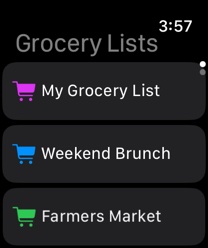
Paprika on Apple Watch: the Grocery Lists screen with My Grocery List, Weekend Brunch and Farmers Market.
Grocery lists on Apple Watch.

Paprika's Apple Watch companion app puts your grocery lists and timers on your wrist. The Watch app loads its data from the paired iPhone — if your lists haven't loaded yet, launch Paprika on your phone and they will transfer over.

Grocery Lists
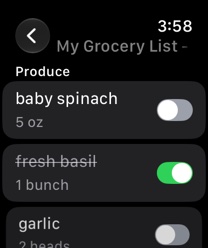
A grocery list open on Apple Watch: baby spinach, fresh basil crossed off as purchased, and garlic, each with a switch.
A grocery list's items on Apple Watch.

The Grocery Lists screen displays your grocery lists. Tap a list to view its items, and tap an item to mark it as purchased — it will be crossed out. Tap it again to mark it unpurchased.

You can filter the items shown (for example, to only the items still to buy), swipe left across an item to delete it, and add new items by name using the button — dictate the item's name or scribble it with your finger.

Timers
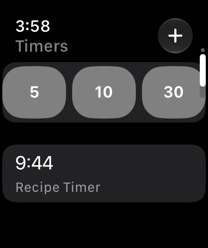
The Timers screen on Apple Watch: the 5, 10 and 30 minute presets, the add button, and a running recipe timer counting down.
Timers on Apple Watch.

Scroll down from the grocery lists to reach the Timers screen. Start a timer with one of the preset buttons, or create a custom timer with your own duration. Running timers display a countdown, and your Watch will notify you when a timer finishes.


Table of Contents

  1. Introduction
    1. Table of Contents
  2. What's New
    1. Highlights
    2. Other Changes
  3. Beta Testing
    1. Before You Start
    2. What to Test
      1. Adding Recipes
      2. Organizing
      3. Nutrition
      4. Sharing
      5. Pantry
      6. Meals
      7. Integrations
    3. Sending Feedback
  4. Overview
  5. Adding Recipes
    1. Adding a Recipe
    2. Adding a Recipe from the Clipboard
  6. Scanning Recipes
    1. Scanning a Recipe
    2. Editing a Scanned Recipe
    3. Scanning Tips
  7. Browsing Recipes
    1. Browsing by Category
    2. Browsing Subcategories
    3. Searching Recipes
    4. Advanced Search
    5. Saved Searches
    6. Sorting Recipes
  8. Editing Recipes
    1. Editing a Recipe
    2. Deleting Recipes
    3. Recipe Fields
    4. Inserting Recipe Text
    5. Adding Recipe Photos
  9. Viewing Recipes
    1. Recipe Actions
    2. Printing Recipes
    3. Timers
    4. Scaling & Converting Ingredients
    5. Crossing off Ingredients
    6. Marking Directions
    7. Ingredient Substitutions
    8. Pinning Recipes
    9. Photo Gallery
  10. Nutrition
    1. Entering Nutrition Facts
    2. Analyzing Ingredients
    3. Viewing Nutrition
  11. Categories
    1. Assign a Recipe to a Category
    2. Suggesting Categories
    3. Adding a Category
    4. Editing Categories
    5. Built-In Categories
  12. Cookbooks
    1. Switching Cookbooks
    2. Adding a Cookbook
    3. Managing Cookbooks
    4. Moving Recipes between Cookbooks
    5. Sharing a Cookbook
  13. Browser
    1. Using the Browser
    2. Clipping Recipes Online
    3. Clipping Recipes from Social Media
    4. Manually Saving Recipes Using the Clipboard Tools
      1. Tips
  14. Groceries
    1. Adding Ingredients
      1. Adding a Recipe to the Grocery List
      2. Adding a Custom Item to the Grocery List
    2. Editing the Grocery List
      1. Editing Grocery List Items
      2. Removing Items from the Grocery List
    3. Using the Grocery List
      1. Marking Items as Purchased
      2. Filtering Grocery List Items
      3. Searching the Grocery List
      4. Sorting the Grocery List
    4. Managing Multiple Grocery Lists
      1. Viewing your Grocery Lists
      2. Adding a New Grocery List
      3. Renaming a Grocery List
    5. Grocery List Actions
    6. Using Siri
  15. Pantry
    1. Adding Items to the Pantry
    2. Editing Pantry Items
    3. Pantry Locations
    4. Scanning Barcodes
    5. Sorting the Pantry
    6. Searching the Pantry
    7. Pantry Actions
  16. Meals
    1. Viewing the Meal Planner
      1. Switching Views
      2. Daily View
      3. Weekly View
      4. Monthly View
    2. Adding a Meal
      1. From the Meal Planner
      2. From the Recipe Screen
      3. Drag and Drop
    3. Editing Meals
      1. Changing a Meal's Date or Type
      2. Deleting Meals
      3. Moving or Copying Meals
      4. Scaling Meals
    4. Meal Planner Actions
    5. Calendar Feed
  17. Menus
    1. Adding a Menu
    2. Adding Menu Items
    3. Drag and Drop
    4. Adding a Menu to the Meal Planner
    5. Menu Actions
  18. Sharing
    1. Family Sharing
      1. Inviting Family Members
      2. Managing Family Members
    2. Messages
      1. Sending Recipes & Cookbooks
      2. Receiving & Importing Recipes
      3. Push Notifications
  19. Settings
    1. Accessing the Settings Panel
    2. List of Settings
    3. Account
      1. Paprika Cloud Sync
      2. Creating an Account
      3. Logging In
      4. Managing your Account
      5. Deleting your Account
    4. Import Recipes
      1. YAML Format
    5. Export Recipes
      1. How to export your recipes
    6. Find Duplicates
    7. Alexa
  20. Extensions
    1. Saving Recipes from Other Apps
    2. Widgets
    3. Shortcuts
    4. Apple Watch
      1. Grocery Lists
      2. Timers
  21. Resources
    1. Technical Support
    2. Frequently Asked Questions
    3. Changelog