Warning
This guide is for Paprika 4, which is currently in beta. Switch to the Paprika 3 guide.
Groceries
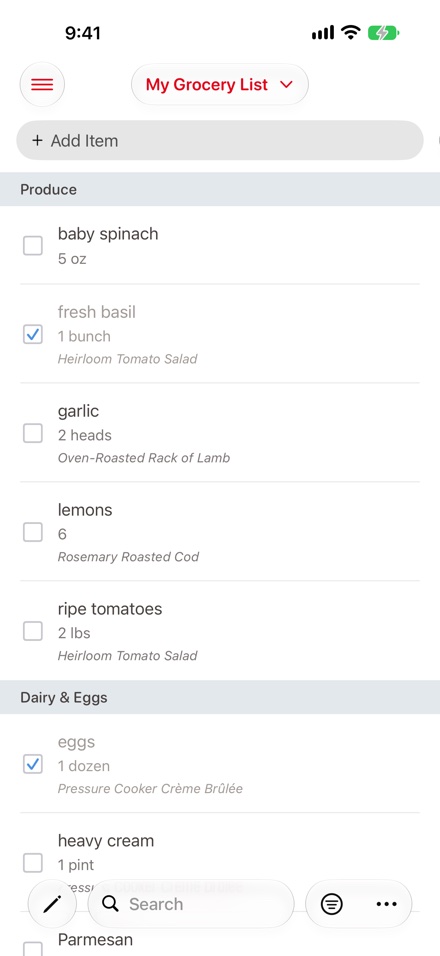
- Add item Adding a Custom Item to the Grocery List
- Purchased item Marking Items as Purchased
- Filter button Filtering Grocery List Items
- Search bar Searching the Grocery List
- Current list Viewing your Grocery Lists
- Actions menu Grocery List Actions
Paprika's grocery list makes it easy to shop for your recipes. You can make multiple grocery lists, add entire recipes to your grocery list, as well as your own custom grocery items.
The grocery list will automatically attempt to consolidate similar items with one another. For example, if one recipe calls for 2 eggs, and another recipe calls for 3 eggs, the consolidated listing will display 5 eggs total.
Consolidated items will be displayed with a ⊕ symbol next to the quantity. Tap on the row in order to view the original items.
Note
You can turn off the grocery list consolidation feature in the Settings panel if you do not find it useful.
Adding Ingredients
Adding a Recipe to the Grocery List
To add an entire recipe to the grocery list, open the recipe and press the button in the toolbar.
An ingredients pane will pop up displaying that recipe's ingredient list. Here you can check/uncheck ingredients before they are added to the grocery list. If you have more than one grocery list, you can also choose which list to add them to.
(For example, if you already have salt at home, you can uncheck it before adding the recipe to the grocery list.)
Note
Ingredients you have in stock in your Pantry will be automatically unchecked for you, and marked In Pantry. Paprika also takes the quantity recorded in your pantry into account, so if a recipe needs more of an ingredient than you have on hand, it will stay checked. Pantry items that are past their expiration date stay checked too. If either quantity is missing, or the two can't be compared, the ingredient counts as on hand.
Once you have the correct ingredients checked, press the button to add those ingredients to the grocery list.
Shortcut You can also add recipes to the grocery list from the main recipes listing, by tapping and holding on a recipe and selecting .
Adding a Custom Item to the Grocery List
Custom items can be added to the grocery list by typing them into the Add Item field at the top of the grocery list.
If you are adding a common grocery item, the aisle will be automatically selected for you as you type. You can also set a specific aisle yourself, and Paprika will remember and sync the new ingredient aisle.
Your current entry will also be autocompleted as you type: suggestions appear in a card under the field. You can tap on a suggestion to select it, or tap the list to close the suggestions.
Editing the Grocery List
Editing Grocery List Items
To edit a grocery list item, tap on the grocery item row to open the edit screen for that item.
From here you can edit the grocery item and change its aisle, notes, quantity, and list.
Removing Items from the Grocery List
You can remove individual items from the grocery list by swiping left across an item and then tapping the button.
Finally, you can clear the entire list using the action described below.
Using the Grocery List
Marking Items as Purchased
Mark an item as purchased simply by tapping its checkbox. A checkmark will appear to indicate that the item has been purchased. You can mark the item as unpurchased by tapping it once more.
Filtering Grocery List Items
You can filter grocery items according to whether they are purchased or still to buy using the button in the toolbar. (When you are shopping you may find it easiest to select To Buy, to only show the unpurchased items left on your grocery list.)
You can also filter grocery items according to the recipe they belong to, or show only custom grocery items.
While you are showing only the items to buy, a line after the last item says how many purchased items are hidden, such as 12 purchased items hidden. Tap it to see those items, without changing your filter. Tap to remove the purchased items from the list.
Searching the Grocery List
Use the search bar on the grocery list screen to quickly find an item in your list. The search matches item names and notes.
Sorting the Grocery List
By default, your grocery list will be sorted into aisles based on the type of ingredient. For example, milk will be placed into the Dairy aisle, and spinach will be placed under Produce.
If you prefer, you can change the grocery list to sort by recipe, by tapping the button in the toolbar and choosing Recipe under Sort By.
Managing Multiple Grocery Lists
Paprika starts with one grocery list named My Grocery List. This list cannot be deleted, but it can be renamed. You can add additional grocery lists if you would like.
Viewing your Grocery Lists
On iPhone, the name of the currently selected grocery list is displayed at the top of the screen. Tap it to show all of your grocery lists, then select the list you would like to view.
Note
On iPad, all of your grocery lists are displayed in the column to the left of the current list. Tap on a grocery list to select it.
Adding a New Grocery List
Press the button in the grocery lists view to create a new grocery list.
Renaming a Grocery List
Open the list's options to rename it. On iPhone, choose Edit List Options from the list's menu; on iPad, tap the button at the bottom of the grocery lists column, then tap the info button next to the list. The Edit Grocery List screen lets you change the list's Name and its Reminders Export List, the name of the Reminders list to export to.
Grocery List Actions
You can access these actions by pressing the button in the toolbar.
| Action | Description |
|---|---|
| Clear Grocery List | Removes all items from your grocery list. You can choose between clearing all items, or only clearing purchased items. |
| Move to Pantry | Moves items from the grocery list into the pantry. You can choose between moving all items, or moving only purchased items. If you have multiple pantry locations, you'll be asked to choose a location. |
| Copy to Pantry | Copies items to the pantry, leaving them on the grocery list. |
| Copy to List | Copies the selected items to another grocery list. Choose Move to List instead to move them. |
| Send an email containing the contents of the grocery list. | |
| Print out the grocery list. | |
| Share | Shares the grocery list as plain text, one item per line, so you can send it to any app. |
| Export to Reminders | Exports your grocery list to Reminders. By default the Reminders list will be named Paprika, but this can be customized for each grocery list in the list's options. |
Note
Copy to List and Move to List work on selected items. Tap , select the items, then press . With items selected, the menu offers Move to Pantry, Move to List, Copy to Pantry, and Copy to List for just those items.
Using Siri
You can ask Siri to add items to your grocery list. First, turn on the Enable Siri switch in the Grocery List section of the Settings panel. Then you can ask Siri:
| Action | Example |
|---|---|
| Adding an item | "Add milk to my grocery list in Paprika." |
| Adding multiple items | "Add butter, flour, and eggs to my grocery list in Paprika." |
| Adding an item with a quantity | "Add 1 cup brown sugar to my grocery list in Paprika." |
| Adding an item to a specific list | "Add eggnog to my Christmas Shopping list in Paprika." |
Note
Make sure you tell Siri to use Paprika to perform the action. If you do not mention Paprika, Siri will add the item to your Reminders list instead. If Siri doesn't recognize the request, try saying "Paprika Recipe Manager" instead of just "Paprika".
Table of Contents
- Introduction
- What's New
- Beta Testing
- Overview
- Adding Recipes
- Scanning Recipes
- Browsing Recipes
- Editing Recipes
- Viewing Recipes
- Nutrition
- Categories
- Cookbooks
- Browser
- Groceries
- Pantry
- Meals
- Menus
- Sharing
- Settings
- Extensions
- Resources