Warning
This guide is for Paprika 4, which is currently in beta. Switch to the Paprika 3 guide.
Sharing
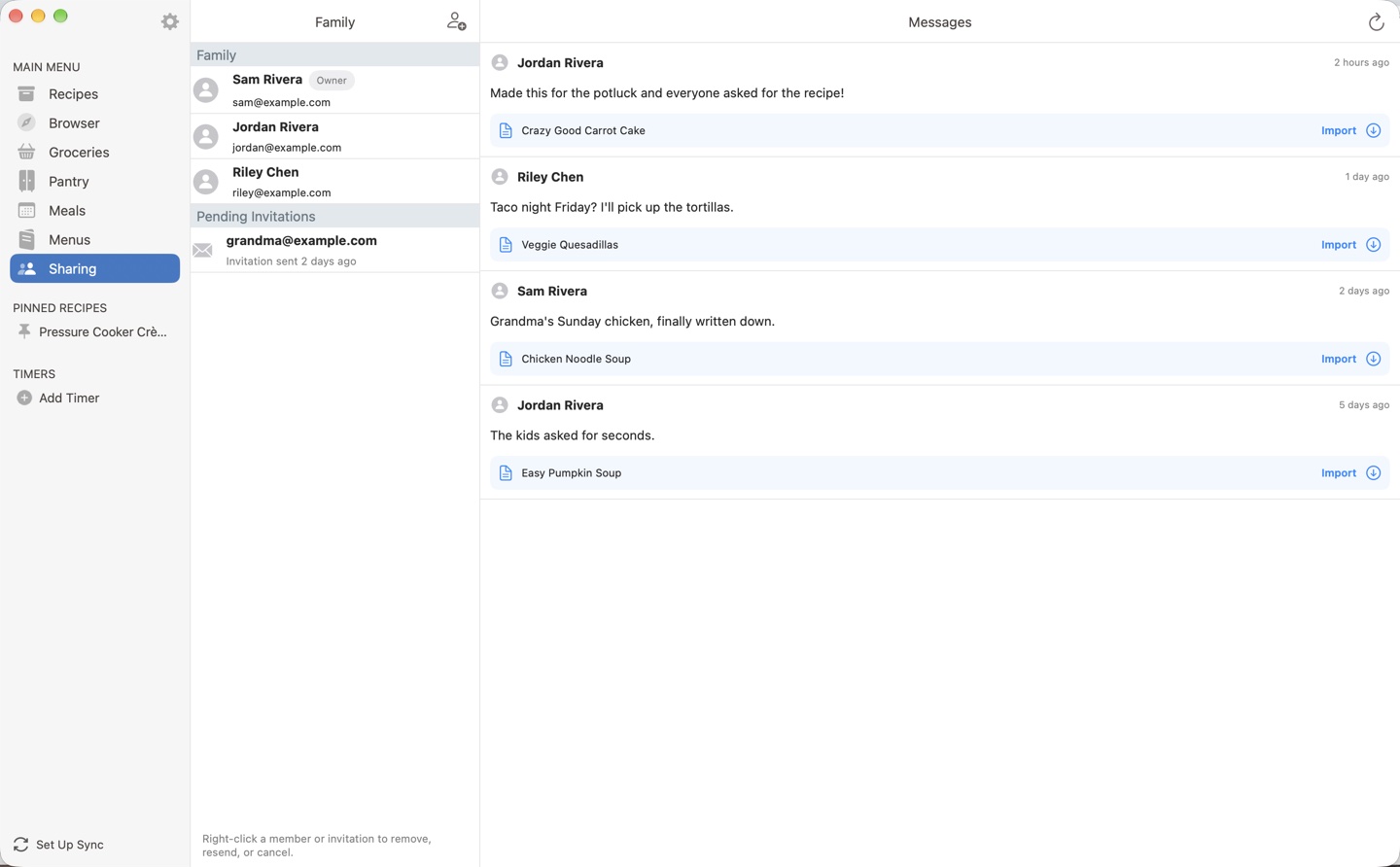
- Add member Inviting Family Members
- Family and invitations Managing Family Members
- Messages Messages
- button Receiving & Importing Recipes
Paprika 4 makes it easy to cook together. You can share your entire collection with the people in your household using family sharing, or send individual recipes and cookbooks to any Paprika user with in-app messages.
Both features live in the section in the main menu: your family is displayed in the Family pane on the left, and your messages are displayed on the right.
Family Sharing
Family sharing lets everyone in your household use the same Paprika account and recipe collection. Each family member gets their own login, and everyone's changes sync to the shared collection — so anyone can add a recipe, check off groceries at the store, or plan the week's meals.
The family owner manages the family and its subscription. Family members do not need to purchase their own subscription.
A family can have up to 5 members in total, including the owner.
Inviting Family Members Premium
To invite someone to your family, go to the section and press the invite button in the upper right corner of the Family pane. Enter the email address of the person you would like to invite.
The invited person will receive an email with a link for joining your family. The invitation is listed under Pending Invitations until they accept it. Once they accept, they'll appear in your family member list and can log in to your Paprika account with their own login.
Managing Family Members
The Family pane displays all of your family member accounts, along with a Pending Invitations group showing the status of any pending invitations. As the family owner, you can:
- Resend a pending invitation if it wasn't received.
- Cancel a pending invitation.
- Remove a family member from the family.
Note
Only the family owner can invite or remove members. Expired invitations are highlighted in red so you can easily resend them.
Messages Premium
You can send recipes — or entire cookbooks — directly to other Paprika users with in-app messages. It's the easiest way to pass along a favorite recipe to a friend who also uses Paprika.
Your messages are displayed on the right side of the screen, with a thumbnail for each recipe and indicators showing which messages have been read.
Note
You must be logged into a Paprika account to send in-app messages.
Sending Recipes & Cookbooks
To send a recipe, open it and choose Send to Paprika User… from the menu. You can also select one (or more) recipes in the recipes list, then right-click and choose Send to Paprika User…. Enter the recipient's Paprika account email address in the To field (you can add more than one), add an optional message, and press .
You can also send an entire cookbook. To send the current cookbook, choose Send “…” to Paprika User… (it shows the cookbook's name) from the cookbook switcher. To send a different cookbook, choose Manage Cookbooks… from the cookbook switcher, right-click the cookbook, and choose Send to Paprika User…. Recipients can import a copy of the cookbook's recipes and categories. Changes you make later are not sent.
Receiving & Importing Recipes
When someone sends you a recipe, it appears in your messages on the screen. Click the message to open the Import Recipes window, choose the recipes you want, then press to add them to your collection. Imported recipes are added to your default cookbook, and you can move them anywhere you like afterwards.
When someone sends you a cookbook, click the message and press to add a copy of the cookbook, with its recipes and categories, to your cookbooks. Later changes by the sender are not synced.
Push Notifications
Paprika can notify you when you receive a new message, even when the app isn't running. The first time you log in, Paprika will ask for permission to send you notifications. You can change this at any time in System Settings -> Notifications on your Mac.
Table of Contents
- Introduction
- What's New
- Beta Testing
- Overview
- Adding Recipes
- Scanning Recipes
- Browsing Recipes
- Editing Recipes
- Viewing Recipes
- Nutrition
- Categories
- Cookbooks
- Browser
- Groceries
- Pantry
- Meals
- Menus
- Sharing
- Settings
- Extensions
- Resources