Warning
This guide is for Paprika 4, which is currently in beta. Switch to the Paprika 3 guide.
Cook Mode
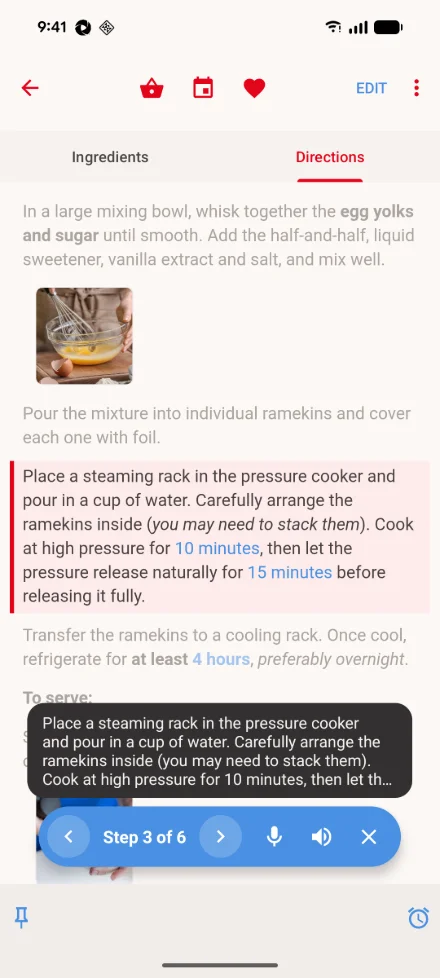
- menu, with Start Cooking Starting Cook Mode
- Current step Moving Between Steps
- Previous and next Moving Between Steps
- button Voice Commands
- button Reading Steps Aloud
- button Stopping Cook Mode
Cook mode steps you through a recipe while you cook. Paprika highlights one step at a time, reads it aloud, and listens for what to do next.
Starting Cook Mode
Open the recipe, tap the button in the toolbar, and choose . Paprika switches to the directions, highlights the first step, dims the others, and reads the step aloud. The screen stays on while you cook.
Note
On tablets, is a button in the toolbar instead, next to the heart. It becomes a button while you cook.
Note
A recipe with no steps has nothing to cook from, so it doesn't offer .
Note
If you've already highlighted a step by tapping it, cook mode starts from that step rather than the first.
Moving Between Steps
The step pill at the bottom of the screen shows where you are, such as Step 1 of 6. Tap or to move between steps, or tap a step in the directions to jump to it. Paprika scrolls each step into view as you reach it, and shows its text in a bubble above the pill.
Note
Headings in the directions, such as For the sauce:, aren't steps. Cook mode passes over them.
Reading Steps Aloud
Paprika reads each step aloud as you reach it, in the recipe's language. Tap on the step pill to turn reading aloud off; it changes to . Tap it again to turn reading aloud back on. Paprika remembers your choice.
Note
Music keeps playing while a step is read, a little quieter.
Voice Commands
While you cook, Paprika listens for what to do next, so you don't need to touch the screen. The button on the step pill shows that it's listening. Tap it to turn listening off, and again to turn it back on. You don't need to say "Paprika" first, though you can.
| Say | To |
|---|---|
| "Next step" / "Previous step" | Move between steps. |
| "Repeat that" | Hear the current step again. |
| "Go to step 3" / "Go to the last step" | Jump to a step. |
| "Start over" | Go back to the first step. |
| "What are the ingredients?" | Hear the ingredients. |
| "How much flour do I need?" | Hear the amount of one ingredient. |
| "Cross off the flour" | Cross off an ingredient. "Uncross the flour" undoes it. |
| "Double the recipe" / "Halve the recipe" | Scale the ingredients. "Reset the scale" undoes it. |
| "Add the ingredients to my grocery list" | Add the recipe's ingredients to your grocery list. Name another list, as in "add the ingredients to my Costco list". |
| "Start a timer for 10 minutes" | Start a timer. "Start the timer" uses the time in the current step. |
| "Stop" | Stop reading aloud. |
| "Stop cooking" | Leave cook mode. |
Paprika shows each reply above the step pill, and says it aloud.
Note
Voice commands are in English, so the button appears only when your device's language is English. The first time you start cooking, Paprika asks to use the microphone. If you don't allow it, the button shows ; tap it to ask again, or to open your device's Settings and allow it there.
Note
Paprika listens only while the recipe is on the screen and the app is in front. Say a command on its own: in the middle of a sentence, as in "we need more wine, next step", it does nothing, so you can talk in the kitchen without crossing anything off. A few things you might say to anyone, such as "I'm done" or "what was that?", count only when you say "Paprika" first.
Stopping Cook Mode
Tap on the step pill, say "stop cooking", or choose from the menu. The current step stays highlighted and the ingredients you crossed off stay crossed off, so you can pick up where you left off.
Leaving the recipe also ends cook mode. Rotating the screen doesn't.
Note
Pin the recipes you're cooking from. A pinned recipe keeps its highlighted step and crossed-off ingredients, and you can hop between pinned recipes from the lower toolbar.
Table of Contents
- Introduction
- What's New
- Beta Testing
- Overview
- Adding Recipes
- Scanning Recipes
- Browsing Recipes
- Editing Recipes
- Viewing Recipes
- Cook Mode
- Nutrition
- Categories
- Cookbooks
- Browser
- Groceries
- Pantry
- Meals
- Menus
- Sharing
- Settings
- Alexa
- Resources