Paprika User Guide for iOS
Welcome to Paprika Recipe Manager!
This guide will introduce you to all of the features available within Paprika. You will learn how to add recipes to Paprika, browse for recipes online, create grocery lists, make meal plans, and more.
If after reading this guide you have any questions that have not been addressed, please consult our knowledge base.
Note: This user guide applies to Paprika 3 for iOS. If you have an earlier version of Paprika, some of the features described in this user guide may not be available in your version.
Table of Contents
- Overview
- Recipes
- Browser
- Groceries
- Pantry
- Meals
- Menus
- Settings
- Extensions
- Support/FAQ/Changelog
Overview
Paprika is divided into several main sections, each of which is accessible by pressing the corresponding button in the side panel.
Note Tap the menu button in the upper left corner of the toolbar to fully expand the side panel.
| Section | Description |
|---|---|
| Recipes | This is the main screen of the application, and contains your recipe collection. From here you can open individual recipes, search for recipes, and view recipes by category. |
| Browser | This built-in web browser allows you to browse for recipes online, and clip your favorite recipes into Paprika. |
| Groceries | This shows your current grocery list. From here you can create grocery lists, add custom items, check off grocery items as you shop, and edit your grocery list. |
| Meals | This is Paprika's meal planner. You can use it to create daily, weekly and monthly meal plans, and view your meal schedule. |
| Pantry | Paprika's pantry section. Useful for keeping track of purchased groceries and figuring out what you have on-hand. |
| Menus | The menus section of the app. It is used to create reusable groups of recipes, such as a multi-day holiday menu. |
Recipes
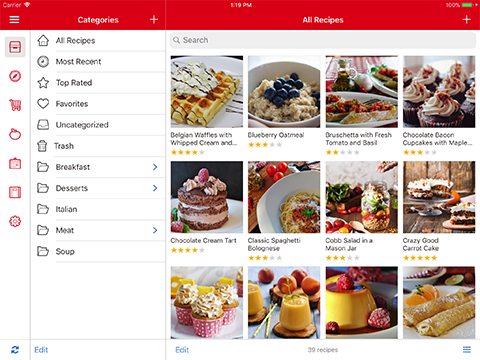
Browsing Recipes
All of your recipes are displayed on the recipes screen. The left pane displays the list of recipe categories, while the right pane shows the recipes themselves. Multiple categories can be assigned to a recipe. In the phone layout, the recipes list is displayed and categories are accessed by tapping the name of the category (button at the top of the recipes list).
In the phone layout, only the recipes list is displayed and categories are accessed by tapping the name of the category (button at the top of the recipes list).
The recipes view offers two ways to view recipes: a grid view with photos, and a list view with thumbnail, name, rating and source. You can flip between these views using the icon in the right corner of the lower toolbar.
Browsing by Category
All Recipes is the default selected category, which displays all of your recipes in alphabetical order.
If you would like to change the selected category, simply tap on a new category to highlight it. On iPhone, tap
the name of the category in the top title bar to see the list of categories.
Note The name of the currently selected category will be displayed in the top toolbar. The number of recipes in that category will be displayed in the bottom toolbar.
Browsing Subcategories

To select a subcategory, press the > button next to a category to navigate into its subcategories, and then tap on one of the subcategories.
Searching Recipes
The recipes screen contains a search bar at the top of the list that you can tap to search for specific recipes in your collection. Simply start typing and your recipes listing will be filtered by the search term.

By default, the search bar searches for your recipes based on the name of the recipe. You can tap the title bar to open
the search options and select between searching by: Name, Ingredients, Directions,
Description, Notes, Source, and Source URL. From there you can also select
which categories you would like to search.
Note You can search for multiple ingredients at the same time by separating them with commas. For example: chicken, spinach.
Sorting Recipes
Recipes are sorted alphabetically by default in the recipes list, unless you have a special category selected such as
Most Recent (sorts by creation date), or Top Rated (sorts by star rating). If you would
like to change the default sort, you can tap on the Sort By button in the
lower toolbar and select between: Name, Rating or Most Recent.
Adding & Editing Recipes
Adding a Recipe

To add a new recipe, press the + button in the upper right hand corner of the recipes screen.
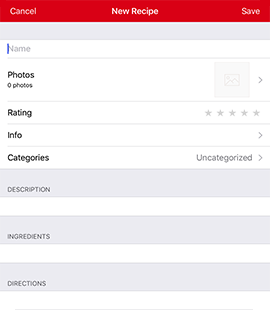
An empty recipe screen will appear, allowing you to enter in the recipe information you would like to save,
such as: name, difficulty, servings, prep time,
cook time, total time, categories, rating, notes, and nutrition.
Description, ingredients, directions and nutritional info are on this screen: scroll down to see more. Tap the white box below the text label to begin editing.
All time fields and servings are in the Info section.
Optionally, use the Photos section to add multiple, high-resolution photos to the recipe. You can add and delete photos and edit the thumbnail,
reorder photos by tap and hold and then drag, and rename photos by tapping the Edit button and
then editing the text field underneath the photo. Photos will display their names in the photo gallery and can be linked to from within recipe
text using the name.
When you're finished entering in your recipe, press the Save button to save your changes.
Editing a Recipe

You can edit a recipe by pressing the Edit button in the upper right corner of the recipe screen.
Deleting Recipes
There are several ways to delete a recipe:
From the recipes list:
- Swipe left across the recipe to reveal the Delete button, and then press Delete.
- Press Edit to put the recipes list into edit mode. Select one or more recipes, and then press the Delete button in the toolbar.
From the recipe screen:
- Press Edit to edit the recipe, scroll to the bottom of the info section, and press Delete Recipe.
Note Deleted recipes will go into the Trash and be displayed in that section of your categories list.
To permanently delete the recipe, go to the trash category on the main recipes view and tap Empty.
To undo the deletion, swipe right on the recipe or tap Edit and choose the Undo action.
Only recipes go into the trash: all other items (meals, groceries, etc) are deleted immediately when you select them for deletion.
Recipe Fields
These are the fields that you can enter when you create or edit a recipe:
| Field | Description |
|---|---|
| Name | The name of the recipe. |
| Difficulty | The difficulty of the recipe. Presets are: Easy, Medium, Hard. |
| Servings | The number of servings this recipe makes. |
| Prep Time | The amount of preparation time this recipe requires. |
| Cook Time | The amount of cooking time this recipe requires. |
| Total Time | The total amount of time this recipe requires. |
| Rating | A star rating from 0 to 5 for this recipe. |
| Categories | The categories this recipe belongs to. |
| Source | Where this recipe came from. Grandma, Serious Eats, etc. |
| Source URL | This is an optional field that records the original URL of the recipe if it came from a website. |
| Description | A short introduction of the recipe, displayed above the directions. |
| Notes | Any cooking notes you would like to include with the recipe. |
| Nutritional Info | Any nutritional information you would like to record for this recipe. |
| Ingredients | The ingredients required for this recipe. Note Create ingredient headings by ending them with a colon (e.g. Sauce:). |
| Directions | The directions for this recipe. |
| Photo | An optional thumbnail and one or more higher-resolution images. You can select from your Photo Library or if your device supports it, take photos with your camera. |
Inserting Recipe Text
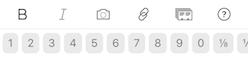
You can add formatting and images to the description, ingredients, directions, nutrition and notes fields.
When you begin editing those fields, a toolbar will appear over the keyboard with helper keys for inserting bold, italic, links and photos.
Paprika uses a modified form of Markdown: to make words bold, surround them with __ or **.
To use italics, surround words with _ or *.
Example A **bold** word. Words in _italics_ are fun.
To insert a link, put the title in brackets and the URL/link in parentheses. Only the title will be displayed.
Example A link to [Google](http://www.google.com)
To link to another recipe, put the name of the recipe in brackets, and prefix it with recipe:
Example A link to [recipe:Brussels Sprouts with Pancetta]
To insert a photo thumbnail, put the name of the photo in brackets, and prefix it with photo:. A thumbnail
will be displayed. You can tap on the thumbnail to see the full size image in the photo gallery.
Example [photo:Mixing the Batter]
Paprika looks up photos and recipes based on name; if multiple recipes exist with the same name, a picker will appear when you tap the link and allow you to choose the recipe. If multiple photos exist with the same name, the first will be selected. If the recipe or photo name changes, links will need to be updated.
Adding Recipe Photos
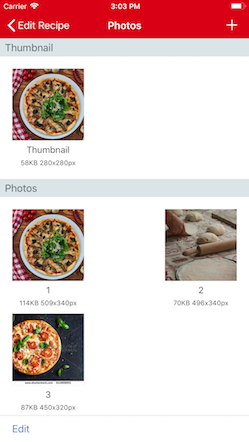
You can add multiple photos to a recipe. They will be resized to a max size of 2048x2048 pixels and synced with your cloud data.
From the edit recipe view, tap the Photos section to see all photos associated with a recipe. To add a photo, tap the + button on the right side of the upper toolbar. There are 3 ways to add a photo:
- From the camera: if your device has a camera, that option will appear when you tap the + button.
- From the photo library: if you have given Paprika access to your Photo Library, you can use this button to select a photo from your library. It will be resized and copied into the app.
- From the clipboard: if you have copied a photo to the clipboard using Paprika's browser, this option will appear and you can choose Paste Photo to add the photo to the recipe.
Each photo displays its name, size and dimensions (in kilobytes or megabytes, generally) below the thumbnailed image. If you tap the thumbnail you will be given options to Delete the thumbnail or Choose a new one from the existing recipe photos. Deleting the thumbnail will not delete the corresponding large photo.
The photo name is used to identify the photo when embedding it in text, and will also be displayed at the top of the photo gallery. Tap Edit and then the name of the photo to edit the name. In edit mode, the recipe photo can also be deleted.
Drag to reorder photos and change their position in the photo gallery.
Note Photos will be uploaded to the cloud immediately but downloaded on demand by other devices (to save space). Photos associated with a recipe are downloaded when that recipe is opened.
Viewing a Recipe
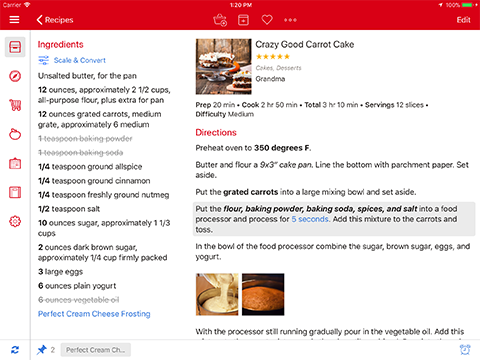
From the recipes screen, tap on a single recipe in the listing in order to open the recipe.
This is the main recipe view. The ingredients are displayed on the left, information about the recipe is displayed near the top, and the directions are displayed below.
Note If the recipe has a source URL, the source will be highlighted
blue. You can tap on the source to load the original source website/URL in the browser.
Note Tap the thumbnail next to the recipe name or any photo embedded in the recipe text to open the photo gallery.
Recipe Actions
The toolbar contains several actions you can perform with the recipe:

| Action | Description |
|---|---|
| Add to Grocery List | Add this recipe to the grocery list. You'll be asked to choose ingredients first. |
| Add to Meal Planner | You can add a recipe to the meal planner using this button. Select the date and meal you would like to add this recipe to, and then press Save. |
| Add to Favorites | Add this recipe to your favorites. |

Less common actions are placed under the Actions button to the right of the other buttons.
| Action | Description |
|---|---|
| AirDrop | Allows you to AirDrop the recipe to someone nearby to be imported into their copy of Paprika. (Only enabled if your device supports AirDrop.) |
| Shares the recipe name and photo on Twitter. (Only enabled if you have Twitter enabled in your device Settings.) | |
| Shares the recipe name and photo on Facebook. (Only enabled if you have Facebook enabled in your device Settings.) | |
Sends the recipe as HTML, with an attachment for importing. Email recipients can import the recipe into their copy of Paprika by tapping the .paprikarecipes attachment. |
|
| iMessage | Sends the name of the recipe a link to the original recipe source, if any |
| Printing recipes requires an AirPrint-enabled printer. | |
| Duplicate | Allows you to save a new copy of the recipe. |
Note You can also tap and hold on a recipe in the recipes list view to see these actions.
Printing Recipes
As described above, printing is accessed via the Actions button in the recipe toolbar. There are several options you can configure for printing:
| Option | Description |
|---|---|
| Page Size |
Allows you to change the page size of the printed recipe. Options available are: Full Page,
Index Cards, and Index Cards Sheets. Index Cards will print to physical index cards,
while Index Card Sheets is meant for printing several index cards on full page paper and then cutting them out.
|
| Orientation | Portrait (taller than wide) or Landscape (wider than tall). |
| Font Size | Allows you to change the font size of the printed recipe. |
| Card Size | Allows you to change the size of the index card. Options are given in inches. |
| Page Margins | Allows you to adjust the printer margins. Measurements are given in inches. |
| Card Margins | Allows you to adjust the inner margin of the index card. Measurements are given in inches. |
| Two-Column Layout | If selected, ingredients and directions will print side by side. Otherwise everything prints in a single vertical column. |
| Show Photo | Allows you to disable printing of the photo. Useful if you want to save ink. |
| Full Size Photo | Whether or not the thumbnail should be printed full-size, or at a scaled size, to preserve ink. |
| Show Info | Whether or not the recipe metadata, such as prep and cook times, should be printed. |
| Show Notes | Whether or not the recipe notes should be printed. |
| Show Nutrition | Whether or not the recipe nutritional information should be printed. |
Timers
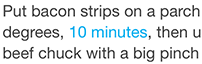
Timers are automatically detected in your recipe's directions and highlighted in blue. In order to start a timer, simply tap on the highlighted time and press Start. The timer countdown will appear in the lower toolbar.
Note Running timers will be displayed in the lower toolbar if there is enough space.
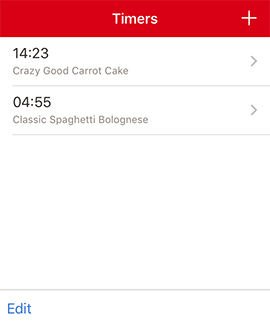

Viewing timers - To view all of your timers, tap the Timers button in the lower toolbar of the recipe detail view; this brings up the timers list. You can also tap the menu button with 3 lines in the upper left corner of the app.
Adding a timer manually - From the timers list, tap the Add Timer button. You can choose a name for the timer (the recipe name is the default). Once you have selected a time, press Start to begin the timer.
Removing timers - Timers are automatically removed once they have elapsed. If you would like to manually remove a timer: you can either swipe to delete it from the list, or tap the Edit button in the upper left toolbar and choose the timers you want to delete.
Editing timers - To change the name or time of a timer, select the timer from the timers list. You can also pause, resume and cancel the timer from this screen, and see the remaining duration of the timer.
Note Timers will fire and play a sound even if the app is not open. If you run into issues, ensure that your device is not muted, and that your volume is turned up.
Scaling & Converting Ingredients
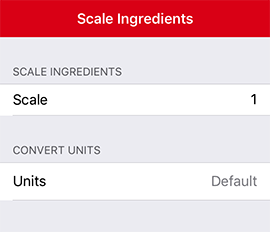
You can scale or convert the ingredients of a recipe by tapping the Scale & Convert button below the Ingredients heading.
When the ingredients scaling popover appears, select the amount you'd like to scale the ingredients by and they will change automatically. The
scale button will update to display the current recipe scale.
You can also use this popup to convert ingredients units between metric, imperial, or default, which resets them back to their original units.
If you add a scaled recipe to the grocery list, the grocery list items will preserve the ingredients scaling.
Note Paprika anticipates this ingredient format: quantity unit ingredient, i.e. 1 cup milk.
For best results, ensure your ingredients are entered in this format.
Crossing off Ingredients
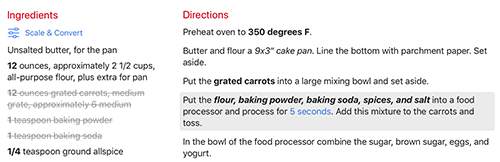
When you are cooking, you may find it useful to cross off ingredients once you have used them. Simply tap the desired ingredient in order to cross it off. (Tap again to un-cross it.)
Marking Directions
You can also highlight the current step of your directions by tapping on it to help keep your place.
Pinning Recipes
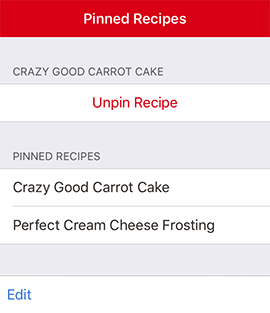

You can pin active recipes to easily switch between them while you are cooking. To pin a recipe, tap the Pins button in the lower toolbar, and then tap on the Pin Recipe button
Pinned recipes will be displayed in the left sidebar menu, and if there is space, also in the lower toolbar of the recipe detail view. Tap on any of these recipes to switch to them. When a recipe is pinned, Paprika will keep track of the ingredients you have crossed off and the current directions you have highlighted, so you don't lose your place.
Recipes can be unpinned by swiping left on them and then tapping Unpin, or by tapping Edit and then selecting recipes for removal and tapping Unpin in the lower toolbar.
Categorizing Recipes
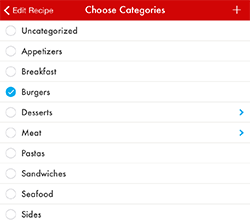
Paprika allows you to organize recipes into categories to make them easier to manage.
Assign a Recipe to a Category
To edit a recipe's categories, navigate into the recipe and tap the Edit button in order to edit the recipe. From here, scroll down and press the Categories button to access the recipe's categories. You can check one (or more) categories to associate with the recipe. Press the Save button when you are done.
Adding a Category
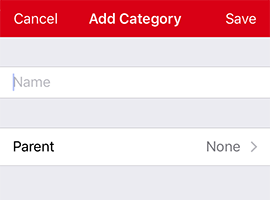
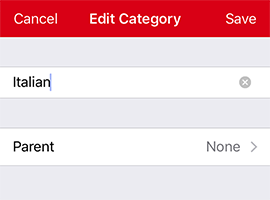
You can add a category by pressing the + button in the categories toolbar.
Optional To create a subcategory, press Parent and choose the parent category of the subcategory you would like to create. This allows the creation of hierarchies; for example, "Breakfast" might contain "Eggs" and "Baked Goods" as separate subcategories.
Editing Categories
Press the Edit button in the categories toolbar in order to rename, sort, and delete categories.
Built-In Categories
There are a number of built-in categories. These categories cannot be removed and provide special ways to view your recipes:
| Category | Description |
|---|---|
| All Recipes | Lists all of the recipes in your collection in alphabetical order. |
| Most Recent | Sorts your recipes by the date they were added, with the most recent recipes near the top. |
| Top Rated | Lists all of the recipes in order from highest star rating to lowest. |
| Favorites | List all recipes that you have added to your favorites. |
| Uncategorized | Lists all of the recipes that have not been assigned to a category. |
| Trash | Lists all of the recipes that have been deleted. Emptying the trash will permanently delete these recipes. |
Browser
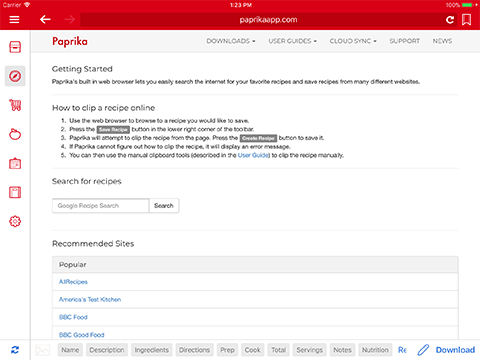
Paprika's built in web browser lets you easily search the internet for your favorite recipes and save recipes from many different websites.
Using the Browser

The upper toolbar contains a combined address bar and search bar, and buttons for the standard browser actions: back, forward, reload, and stop.
Type a URL (website link) into the address bar to navigate to that page (ex: 101cookbooks.com), or type in a search term to perform a Google
Recipe Search. (ex: beet salad). Your last 5 searches are saved in a recents history and will be displayed when you tap the address bar.
The Bookmarks button displays your current bookmarks. From there you can load a bookmark into the browser, edit a bookmark, and add new bookmarks to the list. Bookmarks sync with other cloud data.
The lower toolbar displays tools for saving recipes.
Clipping Recipes Online
Paprika supports downloading recipes from hundreds of different recipe sites. In order to save a recipe:
- Use the web browser to browse to a recipe you would like to save. It's best if the recipe is visible on the page or Paprika may not be to find it.
- Press the Download button in the lower right corner of the toolbar.
- Paprika will attempt to download the recipe from the page. Press the Save button to save it.
- If Paprika cannot figure out how to clip the recipe, it will display an error message. You can then use the manual clipboard tools (described next) to clip the recipe manually.

Manually Saving Recipes Using the Clipboard Tools

If Paprika wasn't able to save the recipe for you, or only partially clipped the recipe, you can use the clipboard toolbar at the bottom to manually copy/paste the recipe information from any website.
To use the clipboard tools:
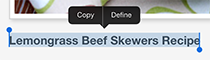
- First, find the name of the recipe on the website. Then tap and hold your finger over the name until the blue selection handles appear.
- Drag the selection handles until the name is fully selected.
- Tap the Name button in the clipboard toolbar. The selected text will be copied into the
Namefield. -
Repeat the same process with the
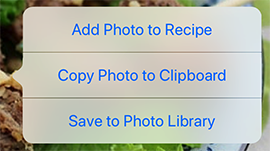
Ingredients,Directions, and any other fields you would like to capture. You can scroll the toolbar horizontally to reveal the extra fields. - To add an image, tap and hold your finger over the image. Then select Add Photo to Recipe from the popup that appears.
- When you've copied all the fields you would like to save, press Save to transfer all of your copied information into a new recipe.


Tips
- You can press the Reset button in order to clear your copied selections and try again.
- You can press any of the Name, Ingredients, Directions, etc buttons at the bottom to reveal the existing text that you have copied into them. From there you can also freely make changes to the text.
- If text already exists in a field when you tap the button, the current selection will be appended to the existing text.
Groceries
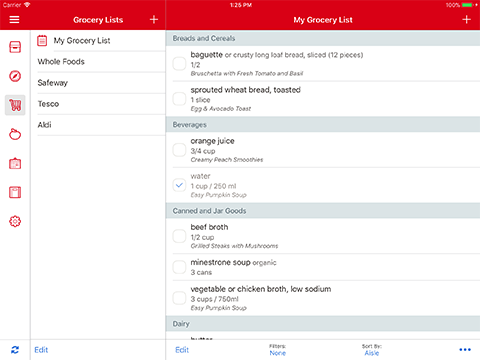
Paprika's grocery list makes it easy to shop for your recipes. You can make multiple grocery lists, add entire recipes to your grocery list, as well as your own custom grocery items.
The grocery list will automatically attempt to consolidate similar item with one another. For example, if one recipe calls
for 2 eggs, and another recipe calls for 3 eggs, the consolidated listing will display 5 eggs total.
Consolidated items will be displayed with a ⊕ symbol next to the quantity. Tap on the row in order view the original items.
Note You can turn off the grocery list consolidation feature in the Settings panel if you do not find it useful.
Adding Ingredients
Adding a Recipe to the Grocery List

To add an entire recipe to the grocery list, open the recipe and press the Shopping Basket button in the toolbar.
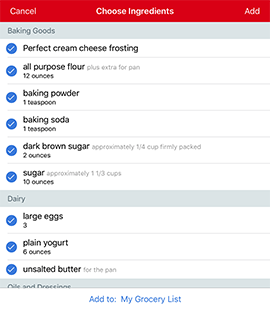
An ingredients pane will pop up displaying that recipe's ingredient list. Here you can check/uncheck ingredients before they are added to the grocery list.
(For example, if you already have salt at home, you can uncheck it before adding the recipe to the grocery list.)
Note Ingredients you have added to your Pantry will be automatically unchecked for you.
Once you have the correct ingredients selected, press the Add button to add those ingredients to the grocery list.
Shortcut You can also add recipes to the grocery list from the main recipes listing, by tapping and holding on the recipe and then selecting Add to Grocery List.
Adding a Custom Item to the Grocery List
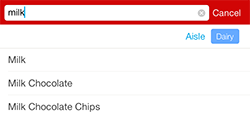
Custom items can be added to the grocery list by pressing the + button in the upper right corner of the screen.
If you are adding a common grocery item, the aisle will be automatically selected for you as you type. You can also tap on the Aisle button to set a specific aisle. Paprika will remember and sync the new ingredient aisle.
Your current entry will also be autocompleted as you type. You can tap on an entry to select it.
Editing the Grocery List
Editing Grocery Items
To edit a grocery list item, tap on the grocery item row to be taken to the edit screen for that item.
From here you can edit the grocery item and change its aisle, notes, quantity, and list.
Removing Items from the Grocery List
You can remove individual items from the grocery list by pressing the Edit button in the right pane, selecting the items to remove, and then pressing Delete.
Shortcut You can also swipe across an item and then tap the Delete button.
Finally, you can clear the entire list using the Clear Grocery List button described below.
Using the Grocery List
Marking Items as Purchased
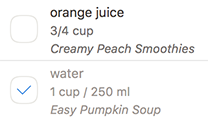
Mark an item as purchased simply by tapping on its checkbox. A checkmark will appear to indicate that the item has been purchased. You can mark the item as unpurchased by tapping it once more.
Filtering Grocery List Items

You can filter grocery items according to whether they are purchased or unpurchased using the Filters
button in the toolbar. (When you are shopping you may find it easiest to select: To Buy, to only show the unpurchased
items left on your grocery list.)
You can also filter grocery items according to the recipe they belong to, or show only custom grocery items.
Removing Recipes from the Grocery List
You can remove an entire recipe from the grocery list from the Filters section. Press the Filters button to show the recipe names, then swipe left across the desired recipe, and press Delete.
Sorting the Grocery List
By default, your grocery list will be sorted into aisles based on the type of ingredient. For example, milk
will be placed into the Dairy aisle, and spinach will be placed under Produce.
If you prefer, you can change the grocery list to sort by recipe, by tapping the Sort By
button in the lower toolbar and choosing Recipe instead.
Managing Multiple Grocery Lists
Paprika starts with one grocery list named My Grocery List. This list cannot be deleted, but
it can be renamed. You can add additional grocery lists if you would like.
Viewing your Grocery Lists
iPad: All of your grocery lists are displayed in the left pane. Tap on a grocery list to select it.
iPhone: The name of the currently selected grocery list is displayed in the upper toolbar. Tap on this list in order to show all of your grocery lists. From there you can select a different grocery list, add a new list, or edit an existing list.
Adding a New Grocery List
Press the + button in the grocery lists upper toolbar to create a new grocery list.
Renaming a Grocery List
Press the Edit button in the grocery lists lower toolbar to rename, sort, and delete your existing grocery lists. You can also customize the name of the Reminders list to export to.
Grocery List Actions
You can access these actions by pressing the Actions button in the lower right corner of the toolbar.
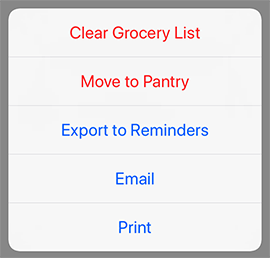
| Action | Description |
|---|---|
| Clear Grocery List | Removes all items from your grocery list. You can choose between clearing all items, or only clearing purchased items. |
| Move to Pantry | Moves items from the grocery list into the pantry. You can choose between moving all items, or moving only purchased items. |
| Export to Reminders |
Exports your grocery list to Reminders. By default the Reminders list will be named Paprika, but this can be
customized for each grocery list (under the options for each list).
|
| Send an email containing the contents of the grocery list. | |
| Print out the grocery list. |
Using Siri
(Requires Paprika 3.2 and iOS 11)
You can now ask Siri to add items to your grocery list. First, enable Siri integration under Paprika's Settings. Then you can ask Siri:
| Action | Example |
|---|---|
| Adding an item | "Add milk to my grocery list in Paprika." |
| Adding multiple items | "Add butter, flour, and eggs to my grocery list in Paprika." |
| Adding an item with a quantity | "Add 1 cup brown sugar to my grocery list in Paprika." |
| Adding an item to a specific list | "Add eggnog to my Christmas Shopping list in Paprika." |
Note Make sure you tell Siri to use Paprika to perform the action. If you do not mention Paprika, Siri will instead add the item to your Reminders list instead.
If you have upgraded to iOS 17 or later you might need to say "Paprika 3" or "Paprika Recipe Manager" instead of just "Paprika" to get Siri to detect the request correctly.
Pantry
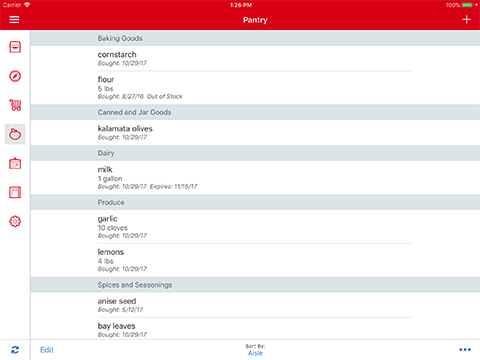
The pantry can be accessed by pressing the Pantry button in the main menu.
Use the pantry to keep track of common ingredients you already have at home, such as: salt, pepper,
flour, sugar, etc.
For each pantry item you can record the quantity, purchase date, expiration date, and whether it is in stock or out of stock.
Ingredients placed in your pantry will automatically be unchecked when you add recipes or meal plans to your grocery list.
Adding items to the Pantry
To add an item to the pantry, press the + button and type in the ingredient name.
Editing Pantry items
Tap on a pantry item to open the edit screen for that item. From here you'll be able to update the item's ingredient, aisle, quantity, purchase date, and expiration date, etc.
Sorting the Pantry
By default, your pantry will be sorted into aisles, similar to the grocery list.
If you prefer, you can change the pantry sort order by tapping the Sort By
button in the lower toolbar. You can choose between sorting by: Aisle, Date Added,
Expiration Date, or In Stock.
Pantry Actions
You can access these actions by pressing the Actions button in the lower right corner of the toolbar.
| Action | Description |
|---|---|
| Move to Grocery List | Moves items from the pantry to the grocery list. You can choose between moving all items, moving purchased items, or moving out of stock items. You can also move individual items to the grocery list by pressing the Edit button in the lower toolbar first and individually selecting the desired items. |
| Send an email containing the contents of the pantry. | |
| Print out the pantry. |
Meals
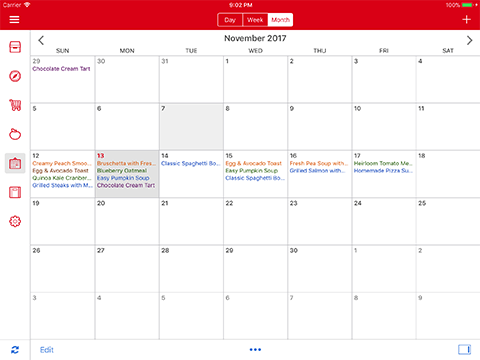
Paprika comes with a built-in meal planner that can be used to create daily, weekly, or monthly meal plans.
Switching Views
Use the segmented control at the top to switch between the daily, weekly, and monthly views. Use whichever view you prefer most.

Monthly View
The monthly view shows an entire month's worth of meals at once. Select a day to see all of the meals you have scheduled for that day.
Use the < and > buttons to switch between months.
Weekly View
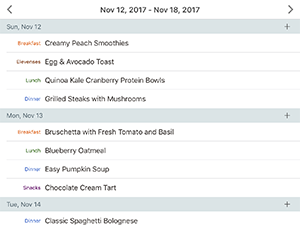
The weekly view displays a week's worth of meals at a time.
Use the < and > buttons to switch between weeks.
Daily View
The daily view shows the meals scheduled for the current day, sorted according to meal type.
Adding a Meal
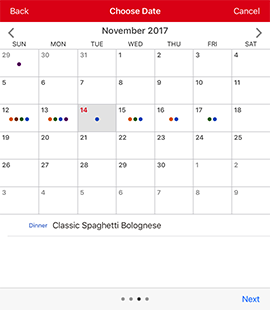
Adding meals can be done from meal planner, or directly from the recipe screen.
From the Meal Planner
To add a meal from the planner, press the + button. Follow the wizard which will walk you through the steps of adding a meal:
- Choose between adding a
Recipe, aNote, or an entireMenu. -
Depending on your selection:
- Recipe - Choose a recipe.
- Note - Type in a note.
- Menu - Select a menu.
- Choose a date for your meal, and then press Next. Note The calendar will show your currently planned meals.
-
Choose the meal type (
Breakfast,Lunch,Dinner,Snack), and then press Save.
From the Recipe Screen

Open a recipe, and then press the Calendar button in the toolbar to add that recipe as a new meal.
Choose a date for this meal, and then press Next. Choose a meal type
(Breakfast, Lunch, Dinner, Snack, etc.), and then
press Save.
Drag and Drop
(iPad only)
You can also add meals by dragging and dropping them from the recipes sidebar.
Press the Recipes button to show the recipes sidebar. Browse to a recipe you like, then tap and hold on that recipe and drag it onto the desired day.
If you have the Daily View selected, you'll be able to directly drag the meal into the desired meal type
(Breakfast, Lunch, Dinner, Snack, etc.).
Editing Meals
Press the Edit button in the lower left toolbar to enter edit mode. From here you can edit, delete, copy, or move meals.
Note Once you enter edit mode, the meal type label becomes a button. Tap on this button to easily change the meal type.
In edit mode each meal row also gains a drag handle. You can tap and hold on this drag handle to easily move the meal between days (in the Weekly View), or move the meal between meal types (in the Daily View).
Changing a Meal's Date or Type

In edit mode, tap the blue Info button next to the meal you would like to edit, and use the popup which appears to make changes. Press Save when you are done.
Deleting Meals
In edit mode, select the meals you would like to delete. Press the Delete button to delete those meals.
Moving or Copying Meals
In edit mode, select the meals you would like to move/copy. Press the Move or Press the Copy button, and then select the date to move/copy those meals to.
Meal Planner Actions
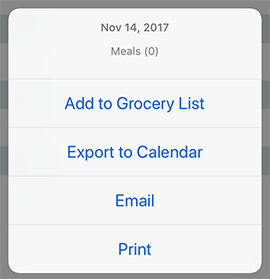
These actions are accessed by pressing the Actions button in the upper left toolbar.
By default, each action is performed on all of the meals in the currently visible view. For example, if you have the Monthly View selected, then selecting Export to Calendar will export the entire month to the calendar. If you have the Weekly View selected, then it will export the current week. If you have the Daily View selected, it will export the current day.
If you would only like to select a subset of meals to perform the action with, first press the Edit button, and select the desired meals. Then press the actions button to perform the action on the previously selected meals.
| Action | Description |
|---|---|
| Add to Grocery List | Add the ingredients for the currently selected meals to the grocery list. |
| Export to Calendar |
Exports the currently selected meals to the Calendar. By default the exported calendar will be named Paprika, but this can be
changed under Settings.
|
| Email a meal plan for the currently selected meals. | |
| Print a meal plan from the currently selected meals. |
Menus
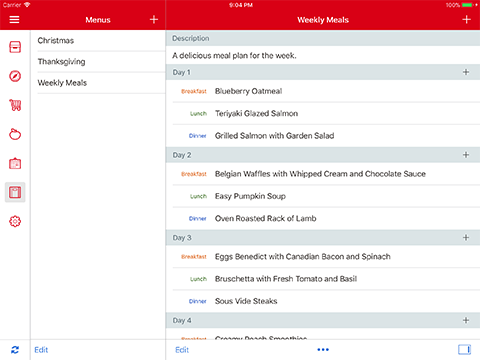
The menus section allows you to group your favorite recipes into reusable menus. Menus are flexible and can be used for different purposes.
Planning a Specific MealIf you want to plan a specific meal, such as a big dinner, you can create a menu for that dinner. Give it a name and description, then add the recipes you want to make. You can also add extra notes to the menu to record preparation tasks or other information.
Making a Weekly Meal PlanYou can add multiple days to each menu, allowing you to create reusable weekly meal plans. To do this, edit the menu and set the Number of Days to 7. The menu will contain 7 headings, Day 1 through Day 7, one for each day. You can then add a recipe Breakfast, Lunch, Dinner, etc. for each day.
Later, you can add this menu to the meal planner. You will be asked to choose the start day, and the rest of the days will be filled in with all of the recipes you previously added to the menu.
Adding a Menu
To add a new menu, press the + button over the menus list and enter in a name. You can also enter an optional description. If you would like the menu to include more than one day, you can increase the number of days here.
Adding Menu Items
Select the menu you would like to view. Press the + button in the upper right toolbar to add a new item to the menu. Like the meal planner, you can choose between adding a recipe, or adding a note.
If this menu has been configured with multiple days, then after you have chosen the recipe or typed in the note, you will also be prompted to choose which day to add this menu item to.
Drag and Drop
(iPad only)
You can also add recipes to a menu by dragging and dropping them from the recipes sidebar.
Press the Recipes button to show the recipes sidebar. Browse to a recipe you like, then tap and hold on that recipe and drag it into the menu. If you have multiple days set up in your menu, you can drop the recipe over the desired day.
Adding a Menu to the Meal Planner
Once a menu is created, it can be added to the meal planner. This is done from the meal planner section. Press the
+ button in the meal planner, then select Add Menu. Choose the
menu you would like to add, then choose the start day.
When you add a menu to the meal planner, all of the recipes and notes in that menu are added to the meal planner. If the menu contains multiple days, each day in the meal planner will be filled in with the contents of the corresponding day in the menu.
Menu Actions
These actions are accessed by pressing the Actions button in the lower toolbar.
| Action | Description |
|---|---|
| Add to Grocery List | Add the ingredients for the current menu to the grocery list. |
| Emails the current menu. | |
| Prints the current menu. |
Settings
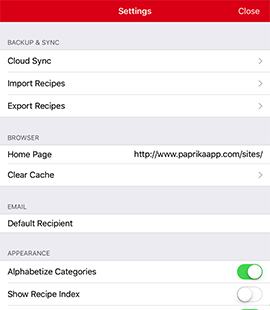
The settings panel allows you to configure Paprika's default behavior.
It also provides access to Papika's syncing, import, and export features.
Accessing the Settings Panel

Paprika's settings panel can be accessed by pressing the Settings button in the main navigation menu.
List of Settings
| Browser | |
| Home Page | Can be used to set the default home page on the browser screen. |
| Detect Clipboard URLs | If enabled, Paprika will check if any URL that has been copied to the clipboard when the app opens, and prompt you to open the URL in Paprika's browser. |
| Clear Cache | Pressing this will clear Paprika's web browser cache. |
| Default Recipient | Sets a default recipient in the To: field for any email messages. Note You can enter multiple recipients by separating them with commas. |
| Appearance | |
| Recipe Font Size | Adjusts the font size of the ingredients and directions on the recipe screen. |
| Alphabetize Categories | If turned on, categories will be automatically sorted alphabetically. Otherwise, you will be able to arrange them manually. |
| Show Recipe Index |
Shows an alphabetical indexed list to the right side of the recipes which lets you navigate to a specific
section containing recipes which begin with that letter. Note this is
only displayed if your Sort option is set to Name.
|
| Keep Screen On | If turned on, the screen sleep timer will be automatically disabled when you are viewing a recipe, and re-enabled when you close the recipe. This prevents the screen from turning off while you are cooking. |
| Show Image Placeholder | Shows a placeholder for recipes that do not have a photo. |
| Grocery List | |
| Consolidate Ingredients |
If turned on, the grocery list will attempt to consolidate similar items with one another. For example,
if one recipe calls for 2 eggs, and another recipe calls for 3 eggs, the consolidated
listing will display 5 eggs total. If turned off, the grocery list will display each item
individually.
|
| Show Recipe Names | Show or hide the names of associated recipes in the main grocery list. If this is disabled, you can still tap on any grocery item to view the recipe it came from. |
| Enable Siri | Enables Siri integration with Paprika. |
| Aisles | Allows you to manage your grocery aisles. You can add new aisles, and rename/reorder existing aisles. |
| Meal Planner | |
| Week Starts On | First day of the week. Used when displaying a week of meals or selecting a date for a meal. |
| Meal Types | Allows you to add custom meal types. Also allows you to rename/reorder the existing meal types and configure options for how they are exported to the Calendar. |
| Keyboard | |
| Show Autocomplete Buttons | Shows the autocomplete toolbar when editing recipe ingredients and directions. |
| Show Text Formatting Buttons | Shows the text formatting buttons when editing recipe ingredients and directions. The text formatting buttons help you add bold/italic text, insert links, insert recipes, and insert photos into your recipe text. |
Paprika Cloud Sync
Paprika Cloud Sync is an automated backup and syncing service for your recipe collection. It will automatically upload your recipes, categories, grocery lists, pantry, meals, and other data to our cloud servers, ensuring your data is safely backed up.
If you have Paprika installed on multiple devices, you can also use Paprika Cloud Sync to keep your data synced across all of those devices.
Setting up Paprika Cloud Sync is optional, but we highly recommend it.
Note Paprika Cloud Sync does not use iCloud. Instead, you will need to create a separate Paprika account as described below. Syncing will not be enabled until you set up a Paprika account.
Accessing Paprika Cloud Sync

Paprika Cloud Sync can be accessed by pressing the Sync button
in the side panel. It can also be accessed via the Cloud Sync option in the
Settings panel.
Creating an Account
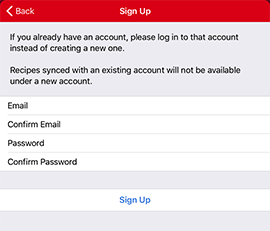
You'll create one Paprika Cloud Sync account for all devices sharing the same recipe collection. You can do this through the settings pane of any version of Paprika that you have purchased, and then log in to that same account on all other versions of Paprika.
To create an account, open the Settings panel, and then select Cloud Sync from the list of options. Then select Create Account.
Enter in the email address and password you would like to use for this account.
Note If you already have an account, please login to that account instead of creating a new one. Recipes synced with an existing account will not be available under a new account.
Logging In
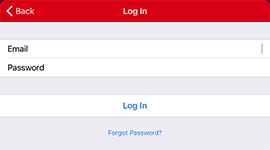
If you already have an account, you can log back into it using the Log In button on the sync screen.
Managing your Account
After logging in, you can manage your account and sync status from the Cloud Sync settings pane.
| Account Status | |
| The email address associated with the account. | |
| Change Email | Allows you to update the email address associated with the account. |
| Logout | Pressing this lets you log out of your account and cancels the sync, if running. |
| Sync Status | |
| Last Synced | The date of the last successful sync attempt. |
| Status |
The result of the last sync attempt. This will say Success if you were able to successfully sync. If your
device was not able to connect to the sync server, the associated message will be displayed here.
|
| Sync Now | Pressing this will initiate a new sync immediately. |
| Sync Settings | |
| Update |
You can choose how often you would like to sync using the Update settings screen.
|
Quick Sync
If you are logged in, the Sync button in the side panel acts as a shortcut button that will initiate a new sync.
Import Recipes
Paprika can import recipe databases from several other applications. To perform an import:
- Add the file to Paprika via iTunes file sharing.
- Navigate to the
Import Recipesscreen in the settings panel. - Select the file to be imported.
The currently supported file types are:
| Supported File Types | |
| .paprikarecipe & .paprikarecipes | Paprika's emailed recipe format and its export format. |
| .ysr | YummySoup! export format. |
| .mgourmet, .mgourmet3, & .mgourmet4 | MacGourmet export format. |
| .mx2, .mxp & .mz2 | MasterCook export formats. |
| .mmf | MealMaster export format. |
| .fdx & .fdxz | Living Cookbook export formats. |
| .yml | A plain YAML file. See below for more details on this format. |
| .dvo | Cook'n export format. |
| .txt | The Recipe Manager export format. Note: only for text files exported from The Recipe Manager. |
| .mcb | My CookBook export format. |
| .db | Pepperplate database file. Click here for instructions on how to get your database file from Pepperplate. |
| .hcb | Handy CookBook export format. |
| .sqlite | My Recipe Book database file. |
| .rbox | The Recipe Box export file. |
YAML Format
YAML is a simple, plain text file with sections delimited by key-value pairs. To indicate a block of text, use an initial pipe character, as shown in directions and ingredients. Consistent indenting should be used, but the order of the fields does not matter, and most are optional with the exception of the name, ingredients and directions. It is recommended that you use an online YAML validator such as this one to validate your file if you're experiencing difficulties importing.
Note The YAML format is quite strict with regards to whitespace and indentation. Please also make sure your file is saved with a UTF-8 encoding.
YAML recipe example:
name: My Tasty Recipe
servings: 4-6 servings
source: Food Network
source_url: http://www.google.com
prep_time: 10 min
cook_time: 30 min
on_favorites: yes
categories: [Dinner, Holiday]
nutritional_info: 500 calories
difficulty: Easy
rating: 5
notes: |
  This is delicious!!!
photo: (base-64 encoded image)
ingredients: |
  1/2 lb meat
  1/2 lb vegetables
  salt
  pepper
  2 tbsp olive oil
  4 cups flour
directions: |
  Mix things together.
  Eat.
  Tasty.
  Yum yum yum.
YAML multiple recipes example:
- name: My Tasty Recipe
  servings: 4-6 servings
  source: Food Network
  source_url: http://www.google.com
  prep_time: 10 min
  cook_time: 30 min
  nutritional_info: 500 calories
  on_favorites: yes
  categories: [Dinner, Holiday]
  difficulty: Easy
  rating: 5
  notes: |
    This is delicious!!!
  ingredients: |
    1/2 lb meat
    1/2 lb vegetables
    salt
    pepper
    2 tbsp olive oil
    4 cups flour
  directions: |
    Mix things together.
    Eat.
    Tasty.
    Yum yum yum.

- name: My Tasty Recipe 2
  servings: 4-6 servings
  source: Food Network
  source_url: http://www.google.com
  prep_time: 10 min
  cook_time: 30 min
  nutritional_info: 500 calories
  difficulty: Easy
  rating: 5
  photo: | (base-64 encoded image)
  notes: |
    This is delicious!!!
  ingredients: |
    1/2 lb meat
    1/2 lb vegetables
    salt
    pepper
    2 tbsp olive oil
    4 cups flour
  directions: |
    Mix things together.
    Eat.
    Tasty.
    Yum yum yum.
Export Recipes
Paprika currently offers two different export formats:
| Export Formats | |
| HTML |
A standard portable data format that allows you to preserve a copy of your recipe collection. Your recipes
will be exported to a directory, with an individual HTML file for each recipe, and an index.html
displaying the list of exported recipes. Each recipe file will contain
schema metadata in the HTML.
|
| .paprikarecipes | Paprika's bulk recipe export format. These files can be easily imported into any copy of Paprika. Essentially a zip file containing gzipped JSON files. |
How to export your recipes
- Navigate to the Export Recipes screen from the settings panel.
-
Choose a category to export. By default
All Recipeswill be selected, but you can choose to export a different category if you would like. - Choose either the
HTMLorPaprika Recipe Format. - Press Export.
- The export file or folder will be written to Paprika's documents directory, which can be retrieved using iTunes file sharing.
Extensions
Saving Recipes from Safari
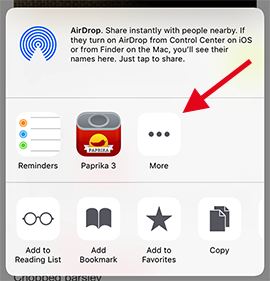
Paprika's Safari extension allows you to easily save recipes directly from Safari. To use to Safari extension, first browse to a recipe you would like to save in Safari.
Then press the Share button in Safari's toolbar.
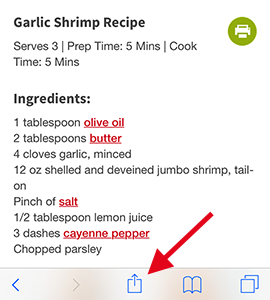
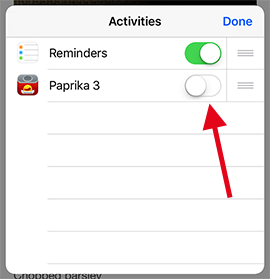
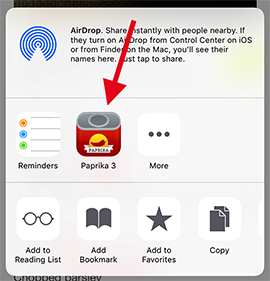
In the second row of the share sheet, look for the Paprika 3 icon. If you do not see the Paprika 3 icon, press the More button to bring up the activity list, and enable the icon for Paprika 3.
Finally, press the Paprika 3 icon to download and save the recipe into Paprika.
Today Widget
Paprika's today widget shows the current day's scheduled meals on the Today View of your iPhone.
To enable the widget, go to the Today View on your iPhone, scroll down to the bottom, and press the Edit button.
Scroll down to Paprika 3 and press the + button to add the widget. You can also drag to
re-arrange the position of the widget.
Apple Watch
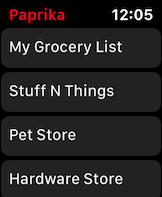
Paprika's Apple Watch companion app shows your grocery lists and items and allows you to mark items as purchased while shopping. Paprika's Watch app is currently not independent and requires a paired iPhone running Paprika 3 to load lists and items.
Loading Grocery Lists
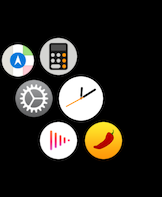
To load grocery lists on the Watch, you'll need to have installed the Watch app and have a paired iPhone nearby. The Watch app can launched by tapping the yellow circular icon with the pepper which is displayed on the main app screen of the Watch. Once launched, if the iPhone is reachable, grocery lists should load and be displayed.
Loading Grocery Items
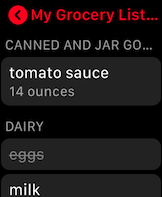
Tap any grocery list name to load its items. The Watch will grab the items from the iPhone and display them; loading might take a few seconds for large lists.
Once loaded, that list's items will stay loaded until you change lists. You can mark items as purchased by tapping them once. Tap again to mark unpurchased.
Filtering the list and adding items
To filter the grocery list items by To Buy, Bought or All, Force Touch on the list items screen to bring up menu options, then choose the filter you'd prefer.
Paprika will remember your choice of filter and use it for all lists on the Watch app.
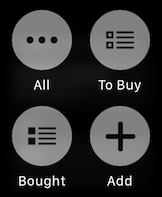
To add a grocery list item, the Watch app must be able to reach the iPhone app. Force Touch on the items screen and then tap Add. The system text
dictation/scribble screen will appear and you can either draw out the letters of the item you want to add using your finger, or tap the microphone icon to
use dictation to speak the item's name. Tap Done when you have finished.
Support
Technical Support
For technical support inquiries, please submit a new ticket through our support page.
Frequently Asked Questions
For answers to frequently asked questions, please consult our knowledge base.
Changelog
For a list of changes in each version, please consult What's New on iPad.
Privacy
Click here for our Privacy Policy.